Setting Up a Raspberry Pi Zero W as a Home Server
I picked up a Raspberry Pi Zero W with a simple goal, to practice SSH properly, from flashing a card to logging in with a key instead of a password. This was a small exercise project over a Friday and Saturday, mainly to practice flashing a card, setting up the Pi Zero W, and practicing SSH. It turned into a full home-server project, and most of the actual debugging had nothing to do with the Pi at all.
Flashing the Card
No monitor, no keyboard. Everything had to work over WiFi from first boot. Raspberry Pi Imager makes this possible through its advanced customisation screen.
I picked Raspberry Pi OS Lite (32-bit), not the default Desktop image, for two reasons. The Zero W’s chip is a single-core ARMv6, which can’t run 64-bit code at all, and a desktop environment is pure overhead on a headless 512MB board with no monitor attached.
For SSH, I generated a dedicated keypair instead of reusing an existing one.
One keypair per purpose is good hygiene, but it has a cost. ssh only auto-tries default filenames like id_ed25519. Anything custom-named needs an explicit -i flag, or an entry in ~/.ssh/config.
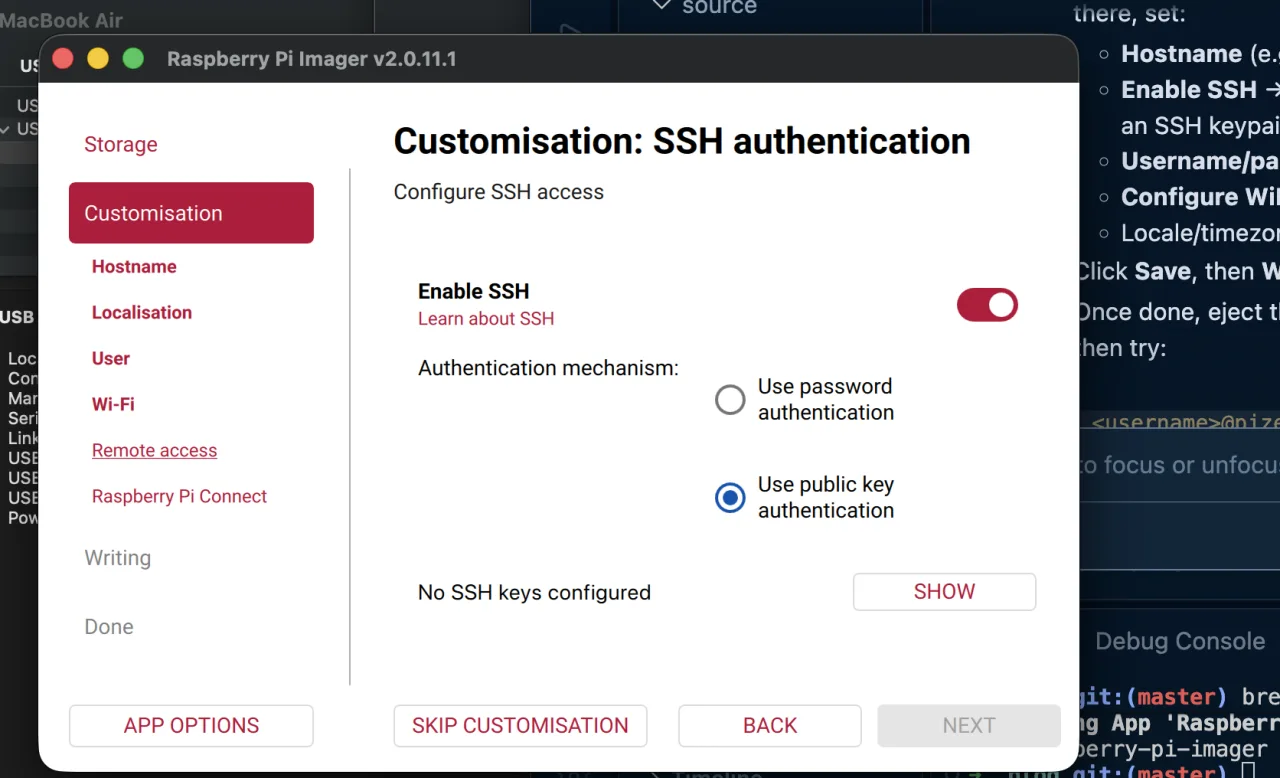
First boot took about 90 seconds before the Pi was actually reachable, since it was resizing the filesystem and applying all the customisation in the background.
The WiFi That Wouldn’t Connect
First boot, and the Pi never showed up on the router’s client list. The Zero W’s WiFi chip (Broadcom BCM43438) has a known weak spot. It struggles with WPA2/WPA3 mixed mode, which is the default on a lot of modern routers. It doesn’t fail loudly, it just never associates. The fix was setting the 2.4GHz band to WPA2 only.
The macOS Local Network Rabbit Hole
With WiFi fixed, ping still failed with sendto: No route to host, on the same subnet, which ruled out routing. The VS Code terminal was hitting this wall, a raw IP connection timed out completely. The actual cause was Local Network permission not being granted to VS Code. Rather than keep chasing VS Code’s permission, I just switched to the Mac’s system Terminal for the actual SSH work from that point on.
Deciding Not to Use a Self-Hosted GitHub Actions Runner
My first instinct was to register the Pi as a GitHub Actions self-hosted runner, so pushing to master would build and deploy directly on the device. Two things changed my mind.
- A self-hosted runner just long-polls GitHub over outbound HTTPS, and it has nothing to do with SSH, so it wouldn’t teach me what I actually set out to learn.
- Running
npm installandhexo generateon a single-core, 512MB board is a bad time, and risks running out of memory on every deploy.
Instead, the build stays exactly where it already was, on GitHub’s cloud runners, publishing to the gh-pages branch and GitHub Pages, completely untouched. The Pi just pulls the already-built static files.
nginx serves that folder directly, and a cron job keeps it in sync.
1 | 0 * * * * cd /var/www/blog && git pull origin gh-pages >> /home/yh/blog-pull.log 2>&1 |
I decided that publishing this very post would be the real test, since it means writing about the cron job and then actually watching it pull the post itself onto the Pi. It worked, pulling right on the hour, exactly as the cron job above is set up to do.
Why It Feels Instant
The first time it loaded, I was surprised by how fast it was for a device this weak. But there’s no dynamic work happening on the Pi at all. Hexo already rendered every page into static HTML during the GitHub Actions build. nginx’s only job is reading files off the SD card and streaming bytes over WiFi, which is almost entirely I/O, not computation. It’s cheap work on cheap hardware, over a LAN with almost no latency, and that combination is what makes it feel instant.
Commands I Used
A running list of the commands that did most of the work, mostly typed straight into the SSH session on the Pi. ssh-keygen, diskutil, ipconfig getifaddr, and arp -d are the exceptions, those ran on the Mac side rather than the Pi itself, but they were part of the same troubleshooting loop so they made the list too.
ssh— the whole point of the exercise, connecting to the Pi headlessly.ping— first-line network reachability test.git(clone,pull,log,add,commit,push) — the publish pipeline on both ends.sudo apt update && sudo apt install— installed nginx and git on the Pi.systemctl(status,restart,enable) — managed the nginx service.crontab -e/crontab -l— scheduled and verified the hourly pull job.curl— smoke-tested nginx was actually serving content.journalctl -u cron— confirmed cron was firing on schedule.ssh-keygen— generated the dedicated keypair for public-key auth.sudo shutdown -h now— cleanly powered the Pi off at the end.mkdir -p/chown— set up/var/www/blogwith the right ownership.ln -s/rm -f— enabled the nginx site config, removed the default one.nginx -t— tested the config before restarting.nano— edited files directly on the Pi, like the nginx config and crontab.tail— checked the pull log after each cron run.cat— quick file reads, like/etc/os-release.scp— pulled a test photo back from the Pi to the Mac.rpicam-hello/rpicam-still— checked and used the camera.diskutil(list,eject) — flashing and safely ejecting the SD card.ipconfig getifaddr/arp -d— diagnosing the subnet and a stale ARP cache entry.
Closing Thoughts
Working through this with Claude Code turned out to be less about writing any code and more about narrowing down which layer a failure lived in (router, macOS, or the Pi itself) one symptom at a time. The Pi Zero W I bought to practice SSH now quietly mirrors this very blog on my home network, and every step of getting there taught me more about my own laptop than about the Pi.